QT (Quotation) Handshake
The QT (Quotation) handshake is a screen where the Seller and the Buyer place a single quotation document side by side and exchange terms. You compare the Seller quote on the left with the Buyer quote on the right line by line, going back and forth with counter-offers and acceptances — and once you reach agreement, a purchase order (PO) is created automatically.
💡 Who uses this? Trade practitioners who need to finalize a quote by adjusting price, quantity, and terms with a buyer over several rounds. Instead of sending quotation files back and forth by email, you can see what changed on a single screen and drive the negotiation all the way to agreement.
ℹ️ Permission requirement — Every action in QT (edit, save, approve, Accept, etc.) checks your license before it runs. Without a license you can still view, but pressing an action button brings up an information modal.
(Only where license restrictions are switched on — see License)
1. Entry — QT Mode in the Document Viewer
🖼️ Screen capture View mode toggle at the top of the document viewer — Single / Split / QT (the QT button appears only on QT documents) 📍
tflowx.com/projects/:iddocument viewer · Saved atimages/app/qt-viewmode-toggle.png
- In the project's document viewer, open a Quotation document.
- Choose a mode from the view mode toggle at the top.
| Mode | Description |
|---|---|
| Single | View a single document in large size |
| Split | View two documents side by side |
| QT | A button that appears only for quotation documents. The Seller↔Buyer handshake screen |
- Press QT to switch to the quotation handshake screen.
ℹ️ The QT button appears only when the open document is a Quotation document. For other document types, only Single/Split are shown.
2. Layout — Seller ↔ Buyer Split View and diff
The QT screen is a left/right split view.
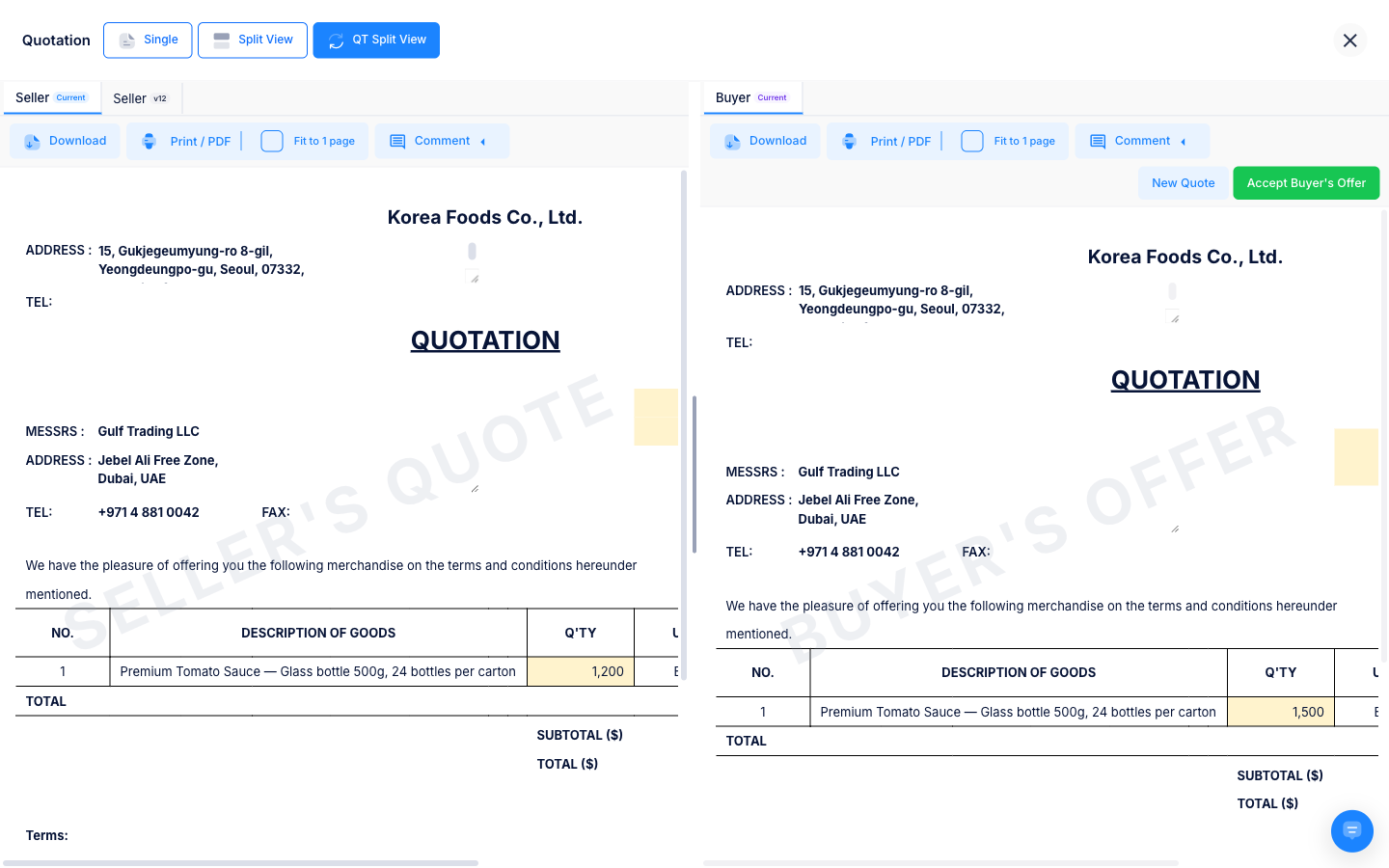
| Area | Content |
|---|---|
| Left (Seller) | The seller's quote — version selector + quote viewer |
| Center handle | The resize handle that adjusts the left/right width |
| Right (Buyer) | The buyer's quote — version selector + quote viewer |
- In each pane you can select a version to view the quote at the point in time you want.
- The Seller and Buyer values are compared, and rows that differ are highlighted (diff) for emphasis. You can see at a glance what changed.
🖼️ Screen capture QT Split View — Seller quote on the left / Buyer quote on the right + diff highlighting on mismatched rows 📍
tflowx.com/projects/:iddocument viewer (QT) · Saved atimages/app/qt-split-diff.png
3. Only the buttons you can press right now are shown
A quote shows only the actions available at its current stage as buttons. If a button is missing, it is the other party's turn to respond.
| Role | Available actions (shown depending on state) |
|---|---|
| Seller | Edit/save quote, request approval/approve, cancel approval, Revise quote, Accept Counter, Send revised quote |
| Buyer | Counter Offer, Send Offer, Accept, Request Accept |
- Buttons for actions you cannot take in the current situation are simply not shown.
- Acceptance is only possible with the Accept button. There is no other way to finalize a quote.
- Requesting or revising a quote is limited to an editor on the seller side. If the button is missing, your role does not allow that action.
- Every action checks the license right before it runs.Permission requirement
4. Version history — every quote you send is kept as a version ✨ NEW
A project keeps one quotation, and changed quotes stack up inside it as versions. Each quote, counter-offer and agreement you send becomes a version (v1, v2 …), and earlier versions are read-only.
- Revise quote — to change a quote you've sent, the seller clicks Revise quote. A new version opens with the previous quote copied in; after editing, Send revised quote shows it to the buyer. You don't have to wait for the buyer's reply.
- While the buyer is drafting a counter-offer, Revise quote and Send revised quote are dimmed (so the buyer's draft isn't left on an old version). They work again once the buyer sends the counter-offer.
Picking a version · save history
- Pick a version — in the single view, the
v3 · Revised quote · 2 earlierbutton at the top right shows the version history (seller/buyer, event, time, author). An earlier version opens read-only with a "can't be edited" banner; Back to current returns. The QT split view tabs also show the event (quote, revised quote, counter-offer, agreed). - Save history — saves since you last sent it appear as Save history, only to your side. Pick a save and Restore to record its content again as a new save (the current content stays in the history too). Sending folds those saves into one version.
- Creating another quotation — Create document → Quotation in Documents opens a new version of the existing quotation instead of a new document (if it hasn't been shared yet, it simply opens that quotation). Only when the existing quotation ended in an agreement is a new quotation created.
- The
v2 · 2 earlierbadge next to the quotation name in Documents shows it has a version history.
🖼️ Screenshot Version history menu in the single view (versions and save history) / earlier-version banner 📍
tflowx.com/projects/:id/documents· Saved atimages/app/qt-versions.png
5. Agreement — Automatic PO Generation on Accept, Edit Lock After Approval
- When the Buyer clicks Accept, a purchase order (PO) is automatically generated based on that quote.
- If the quote is finalized but the PO is missing for some reason, a Regenerate PO banner appears on the screen. You can press it to create the PO again.
- Lock after approval: Once approval is complete and the quote is locked, editing is blocked. This is a safeguard that prevents you from accidentally changing a quote that has already been agreed upon.
🖼️ Screen capture Notice for the PO automatically generated after Accept / the Regenerate PO banner shown when the PO is missing 📍
tflowx.com/projects/:id· Saved atimages/app/qt-po-generated.png
6. Real-Time Updates
The QT screen automatically reflects the other party's changes.
- When the other party changes the quote, a collaboration channel event auto-refreshes the screen.
- However, while you are editing, the auto-refresh is held back so your work in progress is not lost. Once you finish editing, the screen updates to the latest state.
💡 Troubleshooting (FAQ)
Q. I don't see the QT button in the document viewer. A. The QT button appears only when the open document is a Quotation document. Check that it is actually a quotation document, and check the view mode toggle at the top.
Q. I don't see any action buttons (Accept, Counter, etc.). A. QT shows only the actions that are possible in the current state. It may currently be the other party's turn to respond, or the action may not be allowed in the current state. When the other party takes an action, the button for your turn will appear.
Q. When I pressed a button, "A license is required" appeared. A. Every action in QT requires a license.Permission requirement Ask your company Master to assign you a license. → License
Q. I clicked Accept but I don't see the purchase order (PO). A. It is usually generated automatically, but if it is missing, a Regenerate PO banner appears. Press the banner to generate it again.
Q. I'm trying to edit a quote but editing isn't working. A. A quote you've already sent, or one locked after approval, can't be edited. Use Revise quote to make a new version of a sent quote. A quote that ended in an agreement can't be changed.
Versions · revised quotes
Q. I created a quotation, but instead of a new document the existing one opened. A. That's expected. A project's quotes stack up as versions inside one quotation. A new version of the existing quotation opened instead, and earlier quotes are in the version history.
Q. The Revise quote button is dimmed. A. The buyer is drafting a counter-offer. It works again once the buyer sends or discards it.