1.3. Project Calendar Guide
This document explains the overall features and usage of the Calendar menu within a TFlow project.
💬 Try it with Lyra
- "Tell me this week's schedule"
- "Are there any tasks due next week?"
- "Export the schedule data to Excel"
Detailed feature guide: Lyra Interactive Features Guide
1. Calendar View Modes (Month, Week, Day)
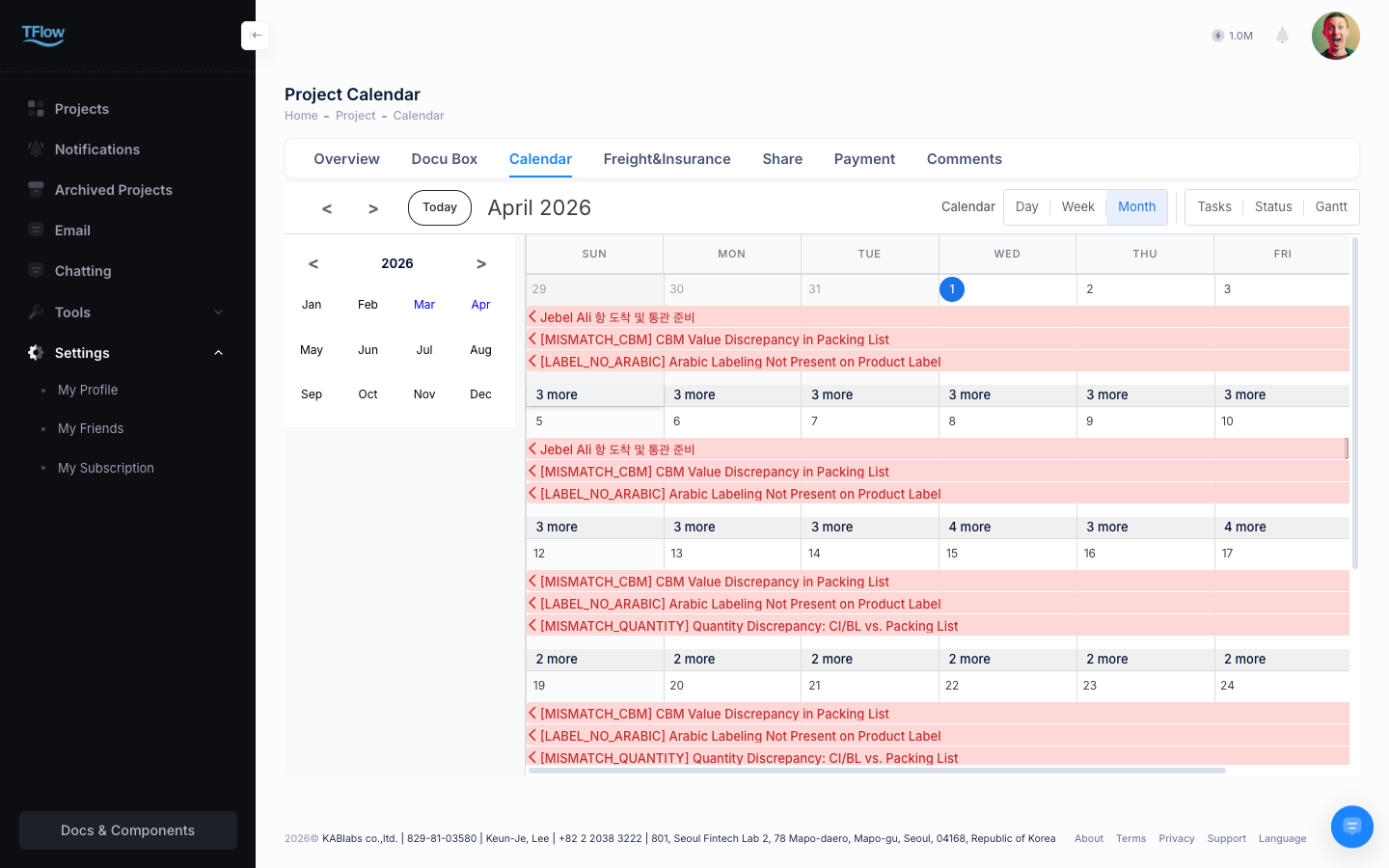
The calendar provides schedules visually in Month, Week, and Day units by default. Select the view button you want at the top right of the screen.
Month view is good for grasping the overall schedule flow.
Week and Day Views
Provide a time-slot grid format for detailed schedule management.
- Instant schedule management: In Week/Day view, clicking the grid of an empty time slot pops up a window to instantly create an event at that time. You can easily change schedules by dragging and dropping schedule blocks.
- Period navigation: Use the
<>buttons at the top left to move between periods, and click theTodaybutton to instantly return to today's date.
2. Task Management Modes (Tasks, Status, Gantt)
Beyond a simple calendar form, it provides detailed task-centered management views. You can select them from the view switch tabs at the top.
Tasks View - List Format
Shows all project tasks in table form so you can manage the details at a glance.
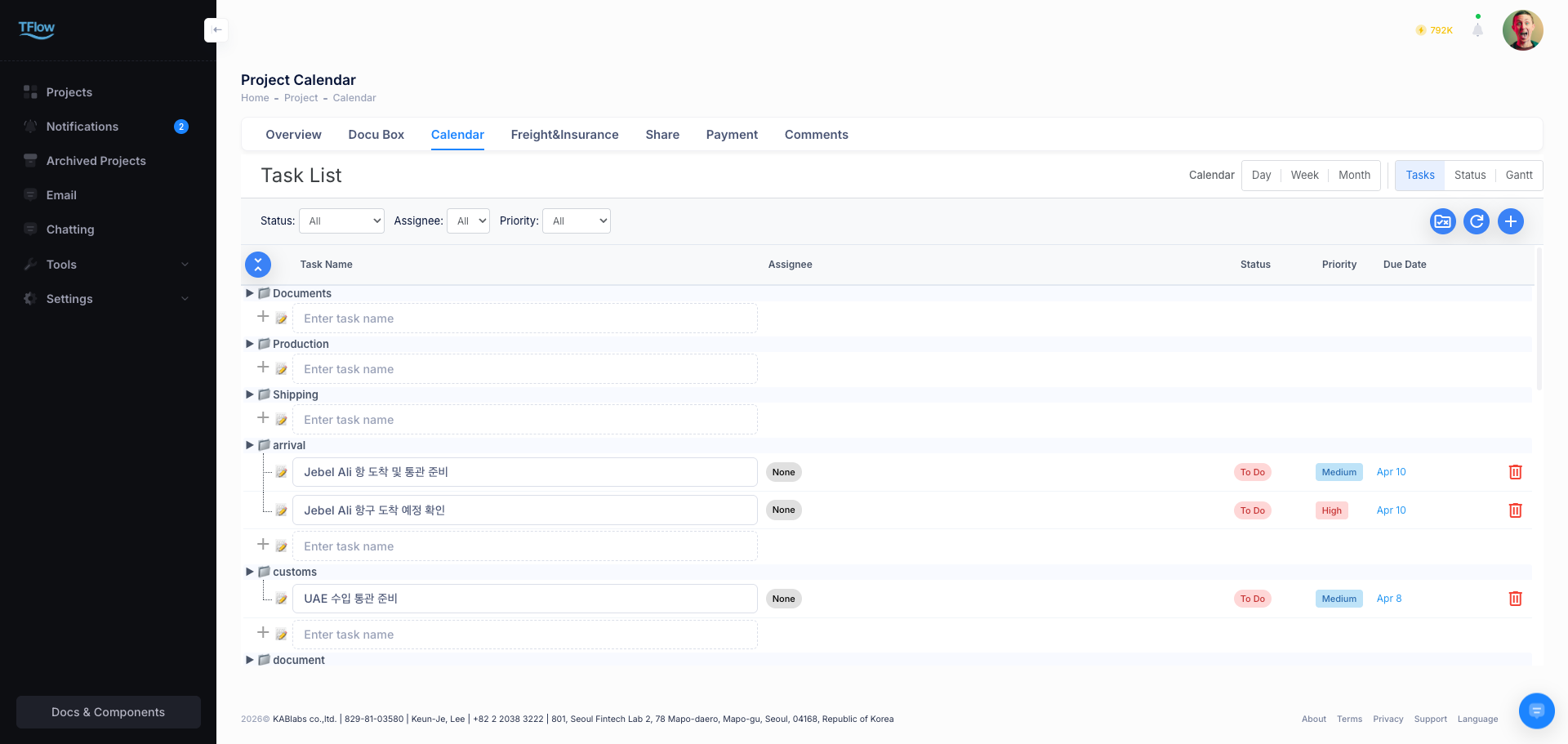
- Check details: You can immediately grasp Status, Priority, assignee (including email), due date, and Progress from the list.
- Task registration and management: Click the blue '+' button at the top right to add a new task directly, and click each row in the list to edit its content.
Special folders — AI suggestions · Documents · Production·Shipping·Customs ✨ NEW
Besides the folders you create, the task list has special folders: AI suggestions, Documents (synced with the Documents tab), and Production, Shipping and Customs (synced with the default trade steps).
- AI suggestions (at the top): follow-ups found in your documents — suggestions waiting for you, changes to review, and checklist items waiting for a date. See 4. AI suggestions below. Sellers and buyers see it with a short note even before anything arrives.
- Auto-added tasks: tasks created by an IRR review, by "Add to schedule" from document or email analysis, or by follow-ups that have no folder yet (e.g. IRR issues, LC expiry, payment receipt checks) also gather here. Edit their status, assignee and due date like any task, and drag one into another folder to file it there. You can't drag tasks into this folder.
Documents folder — synced with the Documents tab
- Documents (marked
Synced with Documents): shows the same documents as the Documents tab.- Every document in the Documents tab appears here; click one to open it in the document viewer right on this screen. Closing the viewer leaves you on the task list. Documents still being classified, or that failed processing, take you to the Documents tab list instead.
- Trade documents you create (QT, PO, PI, CI, PL) show Drafting → Completed. They turn completed once the owning side approves them (the buyer for a PO, the seller for the rest). Uploaded documents show their analysis status (Analyzing, Completed).
- With edit access, required documents not created yet (QT, PI, CI and PL for the seller, PO for the buyer — except while a Quotation exists) appear faded, and once the previous document is approved by both sides the next step document appears. Click
+to create it the same way as in the Documents tab. → Documents guide - Default trade steps for documents you upload (RFQ, Shipping Request, export declaration, B/L — shipping docs received for the buyer) also appear faded with a
Default steptag while the document doesn't exist yet. Click one to set its date or mark it Not applicable, or use Upload in Documents. Once the document is uploaded, its document row takes the place of the step row. - While a status, assignee or priority filter is on, the document rows and the AI suggestions folder are hidden so that only tasks show.
- The folder's own tasks (document to-dos) follow below.
- You can rename this folder but not delete it. Renaming keeps it synced with the Documents tab.
Default-step folders — Production · Shipping · Customs ✨ NEW
- Production · Shipping · Customs (marked
Default steps): the default steps of that kind from the Overview Trade Timeline appear at the top of the folder — production (cargo ready), shipping (freight quote, closings, ETD, ETA, D/O & release, receipt) and customs (import requirements, import declaration, clearance & duties).- Steps without a date are faded; once dated they show Planned or Done with the date; not-applicable steps are struck through.
- Click one to open the same editor as on the Overview (date · planned/actual · not applicable). Dates set here also appear on the Overview Trade Timeline, and shared steps (ETD, ETA…) show the same date to the other side.
- A folder with neither steps nor tasks for your side is hidden — usually Customs for the seller and Production for the buyer.
System folders and folder sharing
- System folders: the four default folders (Documents, Production, Shipping, Customs) are system folders and can't be deleted (you can rename and reorder them). To-dos you add with "Add to schedule" from document or email analysis go by type — document work to Documents, shipping and arrival work to Shipping, customs work to Customs, production work to Production. Projects that don't have one get it when it's needed.
- Shared folders: the default folders are shared by the seller and the buyer. Renaming or reordering them on one side no longer makes them disappear for the other side. Folders you create are visible only to your side.
- Deleting folders: a folder that still has tasks can't be deleted — including a shared folder that only has the other side's tasks.
Status Board View - Kanban Board Format
Classifies cards by task progress stage to aid intuitive workflow management.
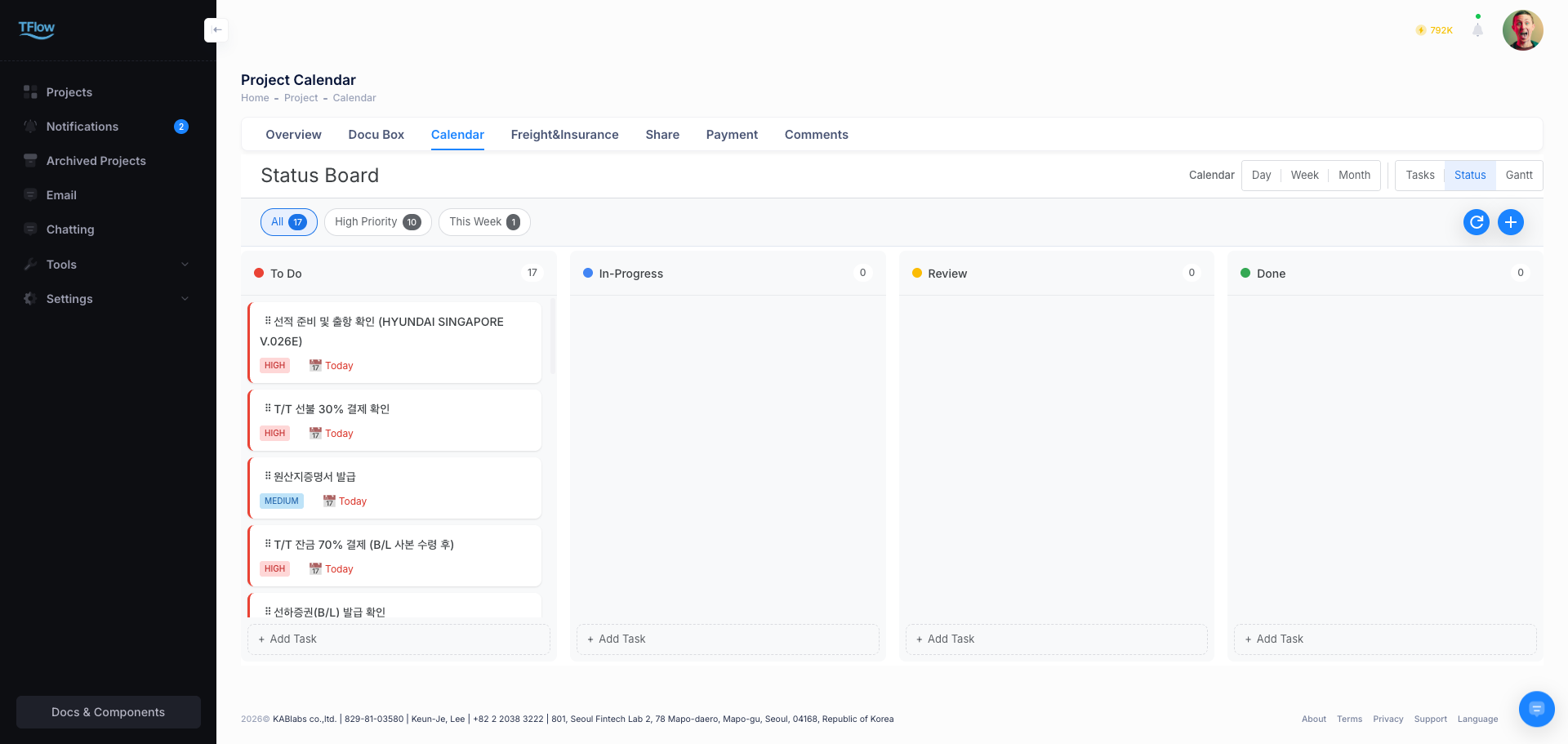
- Card drag changes: Progress-stage columns such as "To Do," "In-Progress," "Review," and "Done" are displayed, and you can quickly update task progress simply by dragging and dropping cards.
- Add task per status: Click the "+ Add Task" text at the bottom of each column to instantly create a task in that stage without navigating to a separate screen.
Gantt Chart View - Timeline Visualization
Good for grasping the overall project timeline, the relationships between tasks, and their durations.
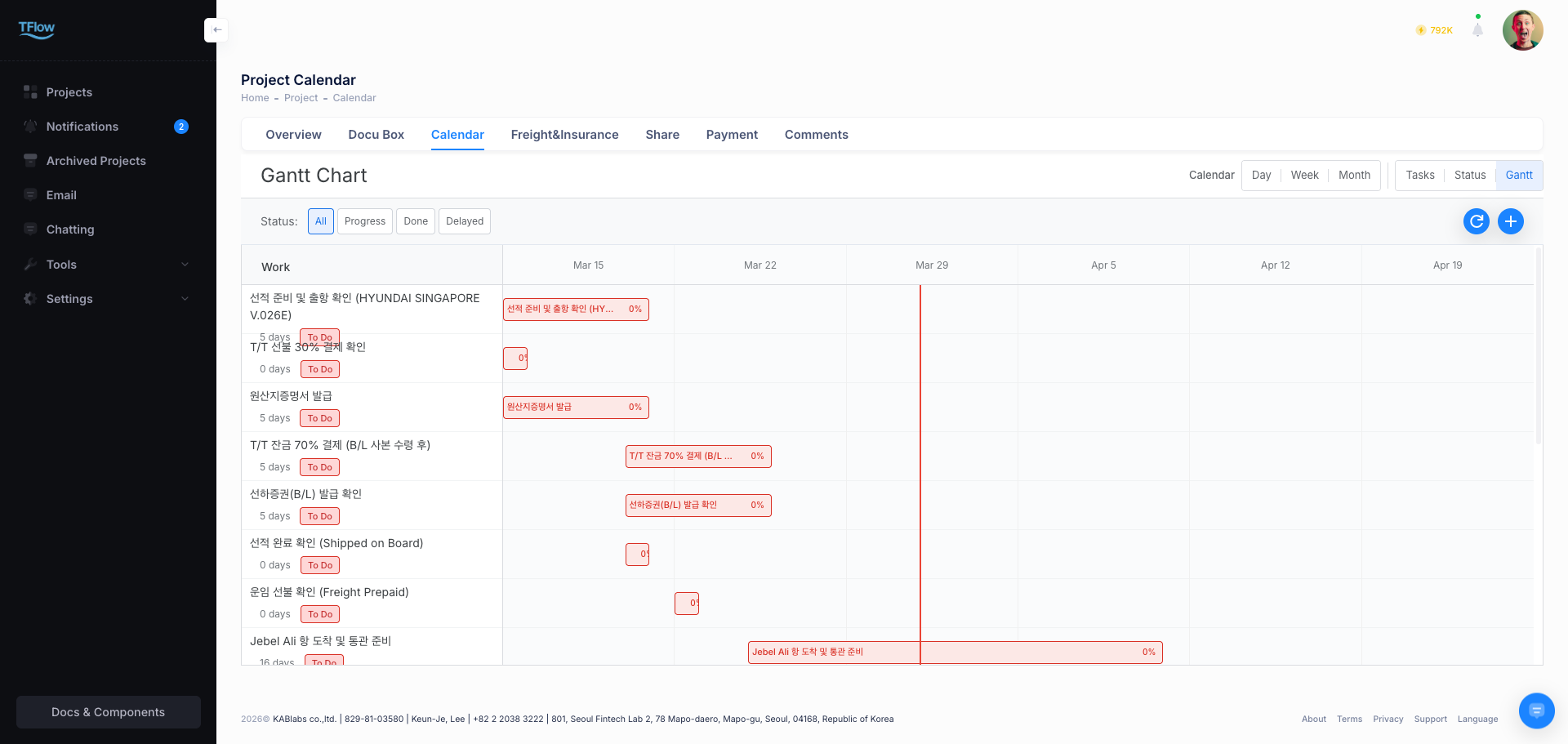
- Adjust duration: Drag the left/right ends of a bar shown on the timeline to easily extend or shorten a schedule's duration.
- Add tasks: Add new tasks within the Gantt chart via the blue '+' button located on the top bar.
3. Common Task Add and Edit Layout
Whichever view you select, the Task Details modal that appears when you add a new schedule or click an existing item has the same layout.
Key management items
- Task Name & Category: Task title and category (required)
- Time range:
All daycheckbox and clear date/time settings - Attribute settings: Manage Status, Priority, and Progress
- Collaboration linkage: Assign a Coworker (collaborator) (email shown) and add a detailed Description note
4. AI suggestions — follow-ups found in your documents ✨ NEW
💡 Who uses this? Sellers and buyers who write their own Quotations (QT), PIs, POs, and CIs. Write payment terms such as "30% advance within 7 days after the PI date, 70% balance within 5 days after the B/L copy", and TFlow reads the sentence and suggests the next steps — payment plan, receipt checks, issuing the PI. You don't have to create each schedule item by hand.
ℹ️ Who sees it — Sellers and buyers each see only their own side's items (forwarders are not included). Changes such as accepting or dismissing need edit access (owner, manager, editor, approver); view-only members see the list only. Accepting, adding to the schedule, and confirming changes require a license.
🖼️ Screenshot The AI suggestions folder at the top of the task list — suggestions · changes to review · waiting for a date · anytime
When suggestions appear
- When you save the payment terms of a QT, PI, PO, or CI, or share the document with your counterparty, suggestions appear in the AI suggestions folder at the top of the task list within 30 seconds to a minute, and you get a notification. In the calendar, status board and Gantt views, a single line at the top shows the counts; click it to go to the task list.
- The moment you share a document, your counterparty also gets suggestions for their side. Document content from before sharing is never used for the counterparty's suggestions.
- Saving the same content several times does not create duplicates. When payment terms appear in several documents, the most confirmed one is used, in the order PI → PO → CI → QT.
Where accepted items go
| Suggestion | When accepted |
|---|---|
| A payment installment (e.g. 30% advance · T/T) | Added as a payment milestone on the Overview Payment card. If your counterparty already added the same installment, it is linked instead of duplicated. |
| A to-do with a due date (e.g. confirming receipt once the PI is issued) | Added to the schedule (tasks) right away. |
| A to-do without a due date yet · reviewing the payment terms | Kept on the checklist in the AI suggestions folder. |
A dismissed suggestion disappears from the list and comes back only if the payment terms behind it change.
ℹ️ Installment tasks and payment status ✨ (2026-10) — for an installment added this way, marking the seller's "Confirm … received" task as done sets that installment on the Overview Payment card to PAID, and undoing it clears PAID. Setting or clearing PAID in the Edit Payment window updates the task too. When the buyer marks the "Remit …" task as done, the payment status stays as it is and the seller gets a "Remittance marked as sent" notification. Installments past their due date become PENDING every day at 9:00 a.m. Korea time, and both sides are notified. → Tasks and payment status
The folder's buttons are icons — ✓ Accept, ✕ Dismiss/Remove, 📅 Add to schedule; hover to see the name.
Grouped by source ✨ NEW (2026-10)
Suggestions are grouped by where they came from.
- For example: "From the payment terms of Proforma Invoice - 2610100003 · 6 suggested", "Import Preparation Check · United Arab Emirates · Oct 9 · 11 suggested · 3 important"
- Within a group, suggestions marked Important come first.
- Normal-priority items where the evidence is weak, or information that is only good to know, are folded under N for reference at the bottom of the group. Click to expand.
- Accept all (N) on a group header adds only the suggestions shown in that group. Run check, Confirm HS code and reference items are handled one by one.
- View report on the Import Preparation Check group opens the full check result in a window without leaving the Tasks tab (the same content as the Reports tab in the Docu Box).
Viewing a suggestion in detail ✨ NEW (2026-10)
Click a suggestion row and a detail panel opens on the right, in the same place as a task's details.
🖼️ Screenshot Suggestion detail panel — to do · why · when · basis · if you accept · about this suggestion
| Section | What it shows |
|---|---|
| To do · Why | What to do and why. Import Preparation Check suggestions show the AI's sentences as written (sentences with a line on the left) |
| When | The due date, the reference point (e.g. 7 days after the PI date), or before contract · before shipment · at customs |
| Basis | The original payment terms and the phrase behind this item · the check report · links to regulation sources. Open document and View report take you straight there |
| If you accept | What gets created and where (payment plan, schedule, checklist, Docu Box, etc.) |
| About this suggestion | Whether it was made by a fixed rule or by the AI reading a document or judging from reference data · whether it uses tokens · whether the other side sees it · whether it can be undone |
- You can Accept, Add to schedule or Dismiss right at the bottom of the panel. When it becomes a task, the panel switches to that task's details.
- Receipt checks and remittances become tasks under Auto-added tasks in the AI suggestions folder; other items (documents, things to check) go to the Documents folder. To move one to another folder, drag it onto a task row or the New task row of that folder (the folder must be expanded), or change the 📁 folder field at the top of the task details. Date updates and auto-completion keep working after you move it.
- Dismiss lets you pick a reason (Not applicable · Already done · Incorrect · Other). Picking one is optional.
- Checklist items, changes to review and completed items open in the same panel.
Import Preparation Check (IPC) suggestions ✨ NEW (2026-10)
When the seller approves a quotation (QT), the AI suggestions folder offers "Check the import/export requirements now?" The buyer gets the same suggestion once the quotation is shared. The result comes back to AI suggestions as an Import Preparation Check group, and rows moved to the checklist carry an IPC badge. For what the check covers, see Documents guide — Import Preparation Check.
| Suggestion | When you accept it |
|---|---|
| Run check (▶) | After a one-time notice that it uses tokens, the check starts (usually 1–2 minutes; you are notified when done). When one side runs it, the other side's suggestion closes too. |
| Confirm HS code | When the AI is confident, its first pick appears in the report as AI recommended and no suggestion is raised. Otherwise you see Needs review with the reason (not enough specs — what is still needed · candidates too close · weak evidence) and pick one of the candidates (Likely · Candidate) from their reasoning and national codes, or enter the code yourself. The AI classifies from the quotation item name and, for deals that started as a store RFQ, from the product's description and specifications — if it reports missing specs, add material, ingredients and intended use to the store product. The code is saved to the shared trade data item, and if it changes you are asked whether to run the check again. |
| Needed document (e.g. Health Certificate) | Goes to the checklist and shows as Upload needed in the Docu Box and the Documents folder. Upload that document and it completes automatically. |
| To check (e.g. Arabic labelling) | Goes to the checklist. The date column shows when it matters: Before contract · Before shipment · At customs. |
- Run check and Confirm HS code are not included in Accept all — they use tokens or need a value, so you handle them one by one.
- Seller items (documents, labels, certifications, packaging) go to the seller and buyer items (importer registration, duties, import permits) go to the buyer. Low-priority items stay in the report only, and normal-priority items with weak evidence or informational ones are folded under for reference.
- If the quotation's items, HS codes, destination or Incoterms change, you are asked again whether to run the check.
Checklist — waiting for a date · anytime
- Waiting for a date: to-dos whose reference event hasn't happened yet. The reference event TFlow can currently detect on its own is the PI issue date. When you save the PI with its issue date, the to-do is added to the schedule automatically with its due date and you get a notification. For events TFlow can't detect yet, such as sending the B/L copy or shipment, pick a date with Add to schedule.
- Anytime: to-dos without a deadline. Check them off when done, or give them a date with Add to schedule.
- Remove takes an item off the checklist, and Reopen brings back a completed one.
- To-dos that end when a condition is met, such as "Issue the PI", complete automatically once the PI is issued.
Review changes — when the basis changes after you added an item
Items you already added (checklist, schedule, payment plan) are never changed automatically to match new terms. Instead, they show up under Review changes.
| Case | What you see | Buttons |
|---|---|---|
| The payment terms changed (e.g. 30% → 40%) | Summary of the new terms | Got it · Got it, move to (date) |
| The PI issue date changed, so the due date moved | The new due date and the current date | Move to (date) · Keep as is |
| The payment terms were removed from the document | A notice | Got it — the schedule and payment plan stay as they are |
Move only changes the date of the linked schedule item or payment milestone. Edit percentages and amounts directly on the Overview Payment card.
AI processing level — Cautious · Standard · Proactive ✨ NEW (2026-10)
Choose how much the AI may handle without asking you. The company default is set by the company master under Settings > Organization > Basic → AI Processing Level (Account guide). Each project can set its own level for your side with the gear (the button showing the level name) on the AI suggestions folder header — for example, the company can be Proactive while an important project stays Cautious.
🖼️ Screenshot The gear on the AI suggestions folder header — choosing a level · preview for this project
| Level | What the AI does on its own | What stays a suggestion |
|---|---|---|
| Cautious | Nothing — it asks first (To confirm) even for the Standard items below | Everything |
| Standard (default) | Putting to-dos on the schedule once their date is set · filling an empty due date in the payment plan · completing items whose condition is met (e.g. the document was uploaded) | All new suggestions are accepted by you |
| Proactive | Standard + adding IPC checks and needed documents, and 'Issue PI' / 'Send B/L copy' to-dos, to the checklist right away | Reference items with weak evidence, payment plan / receipt / remittance (amounts and dates), HS code confirmation, running the check (tokens) |
- At any level, payment plans with amounts and dates, sharing, email and payments are always confirmed by you.
- The gear shows a one-line description per level and an ⓘ (hover to see what the AI does on its own). When you pick another level it previews what changes in this project (e.g. "6 of the current suggestions go straight to the checklist"). Press Apply and the current suggestions update shortly.
- Only your side's approver or the project owner can change the project level; the other side sets its own.
- To confirm (Cautious): these appear as 'To confirm' rows in the AI suggestions folder. Handle them with Put on schedule / Fill due date / Mark done, or choose Leave it and you won't be asked again for the same thing (you will be if the basis changes).
- Done by AI · last 7 days (Standard · Proactive): what the AI did on its own. If nothing has changed since, Undo reverts it, and the AI won't do the same thing again. Undoing a schedule entry moves the task it created to the trash (tasks already done or edited are not undone).
Where you'll notice them
- Tasks tab count: the green number next to "Tasks" in the project menu is the number of items waiting for your decision (suggestions + to confirm + changes to review).
- The Overview To-do card ✨: checklist to-dos appear together with tasks, most urgent first (dated items → things to check → waiting for a date → anytime). → To-do card
- Notifications: tapping a new-suggestion or added-to-schedule notification opens the Tasks tab.
💡 Troubleshooting (FAQ)
- Q: "I try to move or edit a schedule and it says 'Access denied.'"
- A: You cannot move or edit a task you did not create and are not assigned to. Open the task, check who the Coworker is, and either ask that person to make the change or ask to be added as an assignee.
- If it says "This task is managed by the other side," the schedule was created by your counterparty. In that case you have to ask them directly.
- Q: "I saved the payment terms but no follow-ups appear."
- A: It takes about 30 seconds to a minute for suggestions to be created. Check that the payment terms fields have content (payment method and timing on a QT or PI, payment terms on a PO or CI). Forwarder accounts don't get follow-ups.
- Q: "I accepted a follow-up but it isn't on the schedule."
- A: To-dos without a due date yet stay on the checklist in the AI suggestions folder, not on the schedule. They move to the schedule automatically once the reference event (such as the PI issue) is confirmed, or you can pick a date with Add to schedule.
- Q: "I want to know why a suggestion appeared and what changes if I accept it."
- A: Click the suggestion row. The detail panel on the right shows the reason, the basis (the original document text, the check report, regulation sources), what accepting changes, and whether it uses tokens or is visible to the other side. → Viewing a suggestion in detail
- Q: "Some suggestions are folded under 'for reference'. Can I ignore them?"
- A: They are normal-priority items where the evidence is weak, or information that is good to know. Expand them, check whether they apply to your deal, and accept or dismiss them. Reference items are not included in Accept all.
- Q: "I can't delete the Documents, Production, Shipping or Customs folder."
- A: They are system folders. Documents is synced with the Documents tab, and Production, Shipping and Customs hold the default trade steps and the production, shipping and customs to-dos from analysis. You can rename them; their role stays the same.
- Q: "I don't see the Customs (or Production) folder."
- A: A folder with neither default steps nor tasks for your side is hidden. Sellers usually have no customs steps and buyers no production steps. It shows up again once it has a task (e.g. from "Add to schedule" in analysis).
- Q: "A folder looks empty to me, but I can't delete it because it still has tasks."
- A: The default folders are shared by the seller and the buyer, and each side only sees its own tasks. If the other side still has tasks in it, it can't be deleted.