License
A TFlow license is a usage right that a company (organization) purchases and then hands out to individual members. Without a license many screens are still viewable, but change actions such as editing, creating, approving, or deleting require a license. A few seller screens that reveal the other party's identity require a license just to open (see 2-2).
ℹ️ Visibility condition — In an environment where license restrictions are not yet switched on, features work as usual without a license and the blocking notice described below does not appear.
1. If you see "A license is required"
Ask your company Master to assign you a license. Once the Master turns it on for your account, saving and approving work immediately — you do not need to sign in again.
How to word the request — "Please turn on a license for my account in Organization > License tab."
If you are the Master yourself, you can turn it on directly in the Organization > License tab.
If you just joined a department and see this notice ✨ (2026-10) — there were no license seats left when you joined, so you started without a license. If you joined by accepting an invitation, your company Masters have already been notified in the app and by email. Once a Master adds seats and assigns you one, you can work right away. → Automatic assignment on joining
| What you see on screen | What it means and what to do |
|---|---|
| "A license is required for this action. If you belong to a company, ask your company Master to assign you one — otherwise start a subscription." | Your account has not been assigned a license yet. Ask your company Master to assign one. |
| "More users are assigned licenses than your valid subscription allows, so you cannot access this feature." | More people hold licenses than the company purchased, so access is temporarily blocked. Ask your company Master to tidy up the assignments or buy more licenses. |
🖼️ Screen capture Unified "license required" modal — "A license is required" notice + guidance to Organization Management 📍
tflowx.com· Save locationimages/common/license-required-modal.png
2. Features that require a license
The main features whose change actions require a license are as follows.
| Area | Actions that require a license (examples) |
|---|---|
| Documents | Editing in the document viewer/list, running AI analysis (analysis dropdown) |
| Calendar / Schedule | Creating or editing events |
| Tasks | Creating a task, changing its status |
| QT Quotes | Editing, approving, accepting a quote, and all other actions → QT Handshake |
| AI Analysis | Requesting analysis such as IRR or LEO |
| AI Chatbot (Lyra) | Chatbot actions that cause a change |
| Store seller sales | Viewing buyer identity (company, contact, email, phone) on received RFQs, changing status, assigning members, writing/sending quotations, viewing and replying to inquiries (1:1 chat), viewing chatbot conversation history → Seller guide |
| Daily AI tokens ✨ | Daily base tokens are granted only to license holders → Subscription · Billing · Tokens |
2-1. How far the check reaches — reading is free, changing needs a license
ℹ️ The same rule applies across a wide range of areas — projects, documents, calendar, tasks, categories, POs, email, shipping, customs, chat, friends, inquiries, departments, and more. Reading (viewing) is mostly free, and the moment you change something a license is required — that is the way to understand it.
The exception is seller screens that reveal the other party's identity (buyer details in the RFQ Inbox, Inquiries, Chatbot Conversations). Those require a license just to read — you meet a locked screen or a 🔒 mark the moment you open the list (see 2-2).
2-2. The storefront exception
ℹ️ The storefront is an exception and stays open — store operations such as creating a store, registering products, and publishing, as well as buyer-side RFQ submission, adding to cart, and sending a 1:1 inquiry, work without a license. The paid point for the store is the seller's sales response: viewing buyer identity on received RFQs and quoting, reading and replying to inquiries, and reading chatbot conversations.
Without a license, buyer information appears 🔒 masked in the RFQ Inbox list and detail, while Inquiries and Chatbot Conversations show a locked screen the moment you open the list. Response actions such as writing a quotation lead to a subscription prompt.
3. Concept — The organization buys, then assigns to people
- Purchase unit: Licenses are purchased at the company (organization) level. → Subscription · Billing · Tokens
- Who assigns: The company Master turns the license on for each individual member. ✨ When someone joins a department and the company has a free seat, a license is assigned automatically (see 4-1).
- What "Master" means: the company Master who pays for the subscription and assigns licenses. This is not the department head, who manages a department and cannot assign licenses.
- Members without one: A member who has not been assigned a license can view content, but any change action they attempt is blocked.
ℹ️ In other words, "buying a license" and "assigning a license" are separate things. Even if a company bought 5 licenses, a person the Master has not assigned still has no change permission. New members get a free seat automatically when they join, but people already in the company need the Master to assign one after seats are added.
ℹ️ Default state for new sign-ups — Newly created accounts are not issued a license automatically (usage is mostly view-only). Start a free trial or pay for a subscription to obtain licenses. One seat is automatically assigned to the payer of a subscription and the person who starts a trial, so you can use editing features immediately after payment or trial start without a separate assignment step.
From here on, this is what the company Master does. If you are a member who simply uses an assigned license, you can stop reading here.
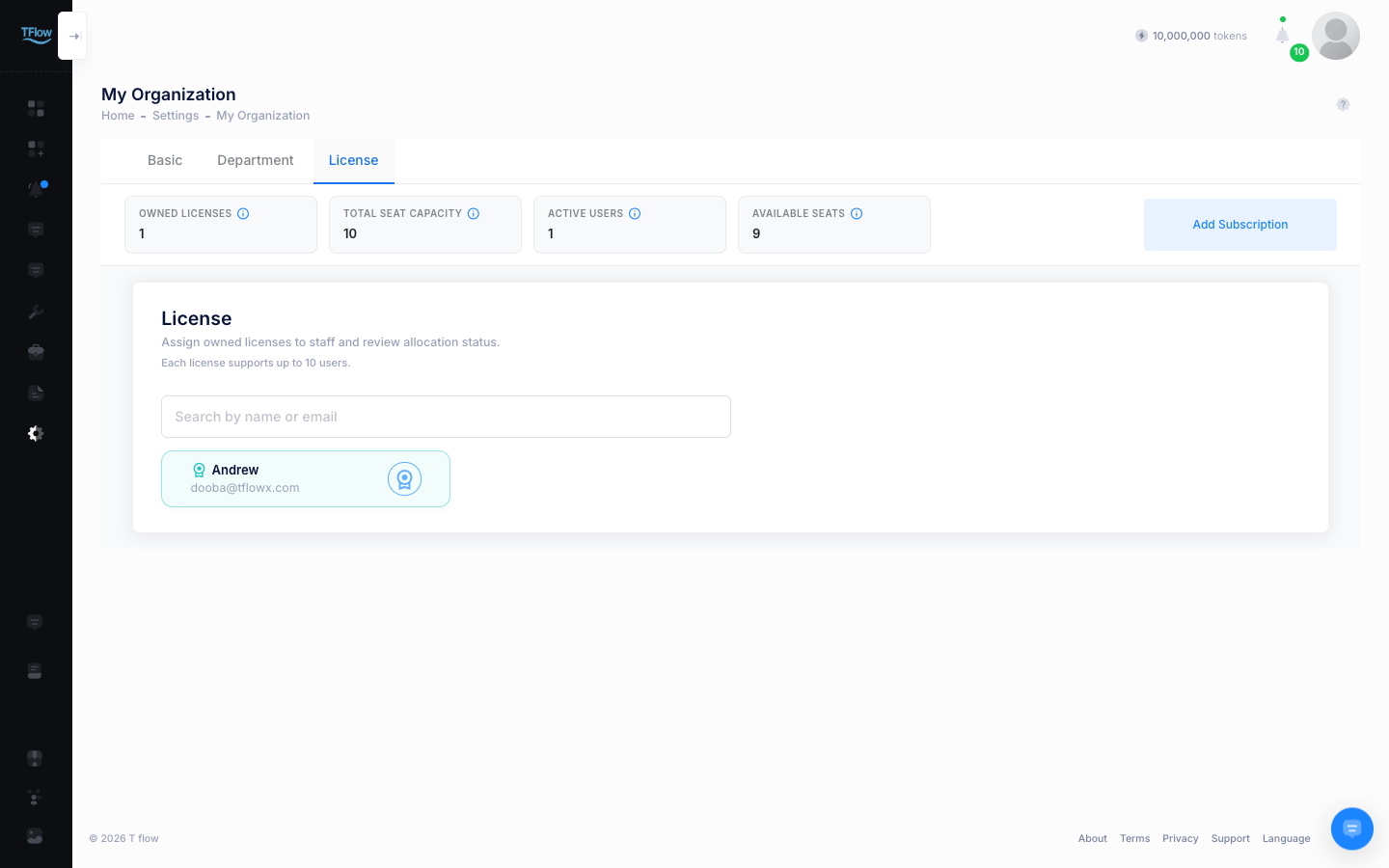
4. Assigning licenses to members (Organization > License tab)
Entry: Top-right profile menu → Organization (tflowx.com/my/organization) → License tab
This is the screen where a license is turned on and off for a member, and only the Master can edit it.
- If there is no subscription: "No subscription" is shown along with Subscribe.
- Member card list: Each member has a card, and you assign or release a license with the license icon toggle on each card. The card of a member who holds a license is highlighted in the background.
- Members who have not accepted their invitation: their card shows "Can be assigned after the invitation is accepted" and the toggle is locked. A license only takes effect for approved members; one is assigned automatically when they join if a seat is free (see 4-1).
- Capacity limit: Total assignable people = number of licenses held × users per license. If you try to assign beyond the limit, an over-assignment warning toast appears.
- Summary bar: The top of the screen shows three cards — Members (approved members; people still to accept an invitation are noted separately) · License Seats (members with a license / the most you can assign, e.g. 3 / 10, with 1 license(s) × 10 seats underneath) · Without License (members who can only view, with the seats left underneath).
- An assignment takes effect as soon as it is saved. If the member already had the app open, it applies the next time they press an edit button or come back to the tab.
- Removing a member also revokes their license. It does not come back automatically if you invite them again, so assign it again if needed.
4-1. Automatic assignment on joining — when seats run out ✨ NEW (2026-10)
Joining a department (by invitation or join request) has no headcount limit. You can invite staff to a department even without an active subscription. Licenses are handled separately, at the moment the joining is approved.
| When the joining is approved | If a seat is free | If no seat is free |
|---|---|---|
| The invitee accepts the invitation | A license is assigned automatically | They join without a license. The invitee sees "…We've let the organization master know — once a license is assigned you can do everything, including working on documents.", and every company Master gets an in-app "Not enough license seats" notification and an email (with a link to Subscription & billing) |
| A Master approves a join request | A license is assigned automatically — "Approved and a license was assigned." | They join only. The approving Master sees a notice right there; Add licenses opens the subscription screen (no separate notification or email) |
- Adding seats does not assign them to people who already joined. Add licenses on the subscription screen, then assign them yourself in the License tab above.
- Clicking the "Not enough license seats" notification opens the subscription & billing screen.
- Manual assignment and release in the License tab work as before.
5. When reducing the license count — the reduction notice modal
If you try to reduce the license count to fewer than the number of people already assigned, the change is not saved and a two-button modal appears — "N users are assigned licenses. Change license users first, then change the number of licenses."
- Manage license users → Go to Organization > License tab and clean up the assignments first
- OK → Close the modal
In other words, you must follow the order "first reclaim licenses from people → then reduce the count."
🖼️ Screen capture License reduction two-button modal — Manage license users / OK 📍
tflowx.com/my/subscription· Save locationimages/common/license-reduce-modal.png
ℹ️ For the refund / scheduled reduction rules that apply when you reduce the license count, see Subscription · Billing · Tokens — Refund Policy.
💡 Troubleshooting (FAQ)
Q. Viewing works, but when I click Save/Approve I get "A license is required." A. Your account has not been assigned a license yet. Ask the company Master to turn on a license for you in the Organization > License tab.
Q. I accepted an invitation (or my join request was approved), but I get "A license is required." A. There were no license seats left when you joined, so you started without a license. If you accepted an invitation, your company Masters have already been notified in the app and by email. Once a Master adds seats and assigns you one in the License tab, you can work right away.
Q. In our environment there are no license restrictions at all. A. You may be in an environment where license restrictions are not switched on.Visibility condition In that case you can use the features regardless of license assignment.
Questions from Masters
Q. I got a "Not enough license seats" notification. A. Someone accepted an invitation and joined the company, but there was no seat left to assign them a license. Click the notification, add licenses on the subscription screen, then assign one to that person in the License tab. The joining itself is already done.
Q. I turned on a license, but I get an "over-assignment" warning. A. The number of people you are trying to assign has exceeded the licenses held × users per license (the capacity limit). You need to purchase more licenses or release another member's assignment to free up a slot.
Q. I'm trying to reduce the license count, but a modal blocks me. A. You cannot reduce it below the number of people currently assigned. Go to Manage license users in the modal, reclaim the assignments first, and then reduce the count.
Q. Where do I actually buy the license count itself? A. Purchasing licenses and changing their quantity is done in Subscription · Billing · Tokens; assigning the licenses you bought to people is done in the Organization > License tab covered in this document.