1.6. External Sharing & Comments (Share & Comments)
A system for smoothly communicating data with the many stakeholders involved in a trade transaction (internal staff, forwarders, customers, banks, etc.) and safely sharing information externally.
⚠️ For security, creating a share link requires Manager or Editor permission on the project. If you don't have it, ask the project owner.
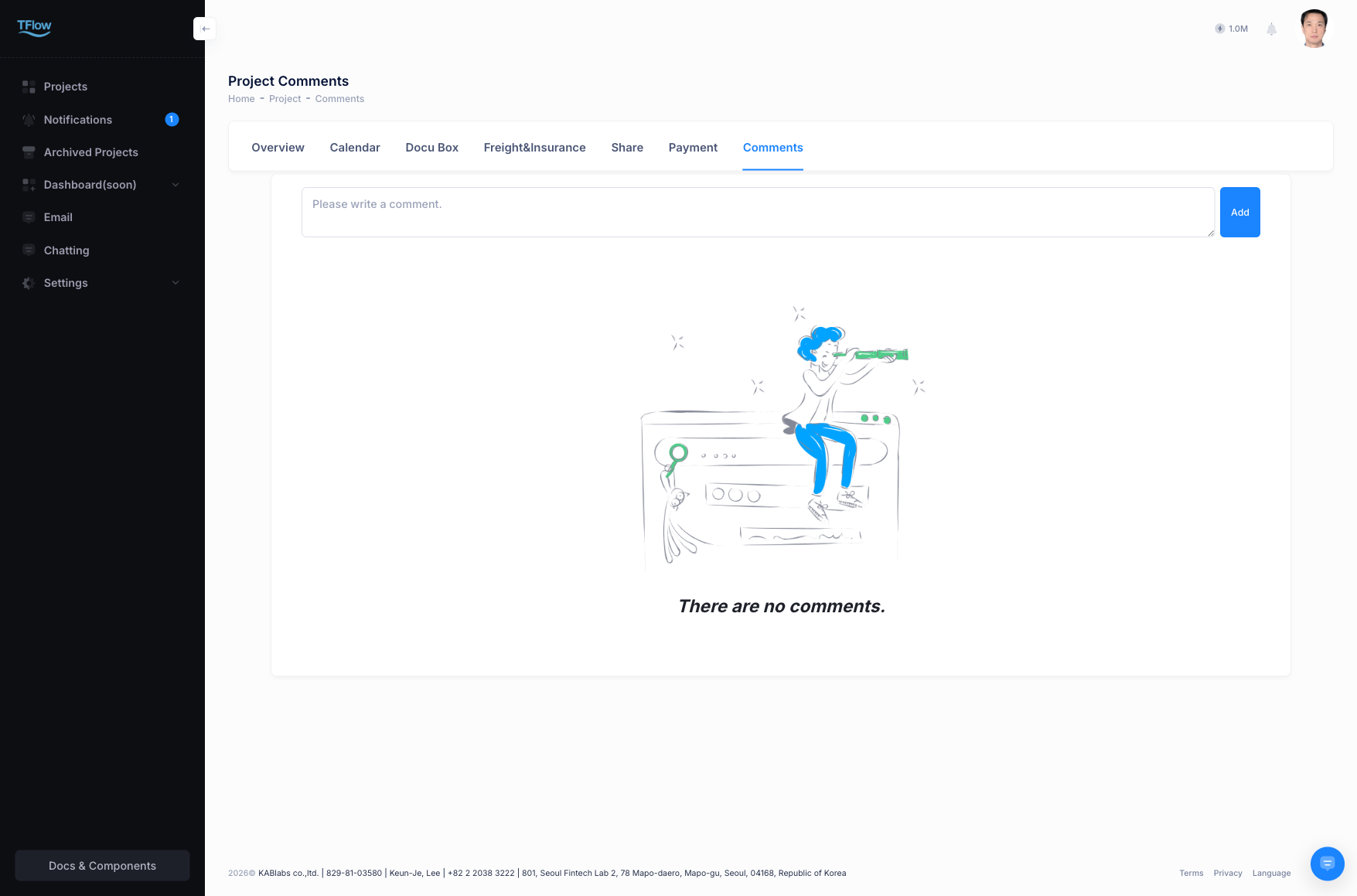
1. Comment Management (Comments / Activity)
Handles work instructions, information sharing, and history tracking within the project.
- Internal communication: Enter special notes or matters requiring discussion that arise during the project. File attachment is also possible.
- Mentions (
@): When you enter@usernamein a comment, a notification is immediately sent to that user. Notifications are also delivered to the Notification Inbox and via push notification, so you don't miss important contacts. - Automatic activity-history archiving: System actions such as status changes in other tabs or document uploads are also accumulated and recorded on a timeline basis.
1-1. Comment Troubleshooting (FAQ)
- Q: "I mentioned someone, but they didn't get a notification."
- A: You cannot mention someone who is not invited as a member of that project. Please first invite them as a
Coworkerin the Project Detail tab.
- A: You cannot mention someone who is not invited as a member of that project. Please first invite them as a
2. External Sharing (Share)
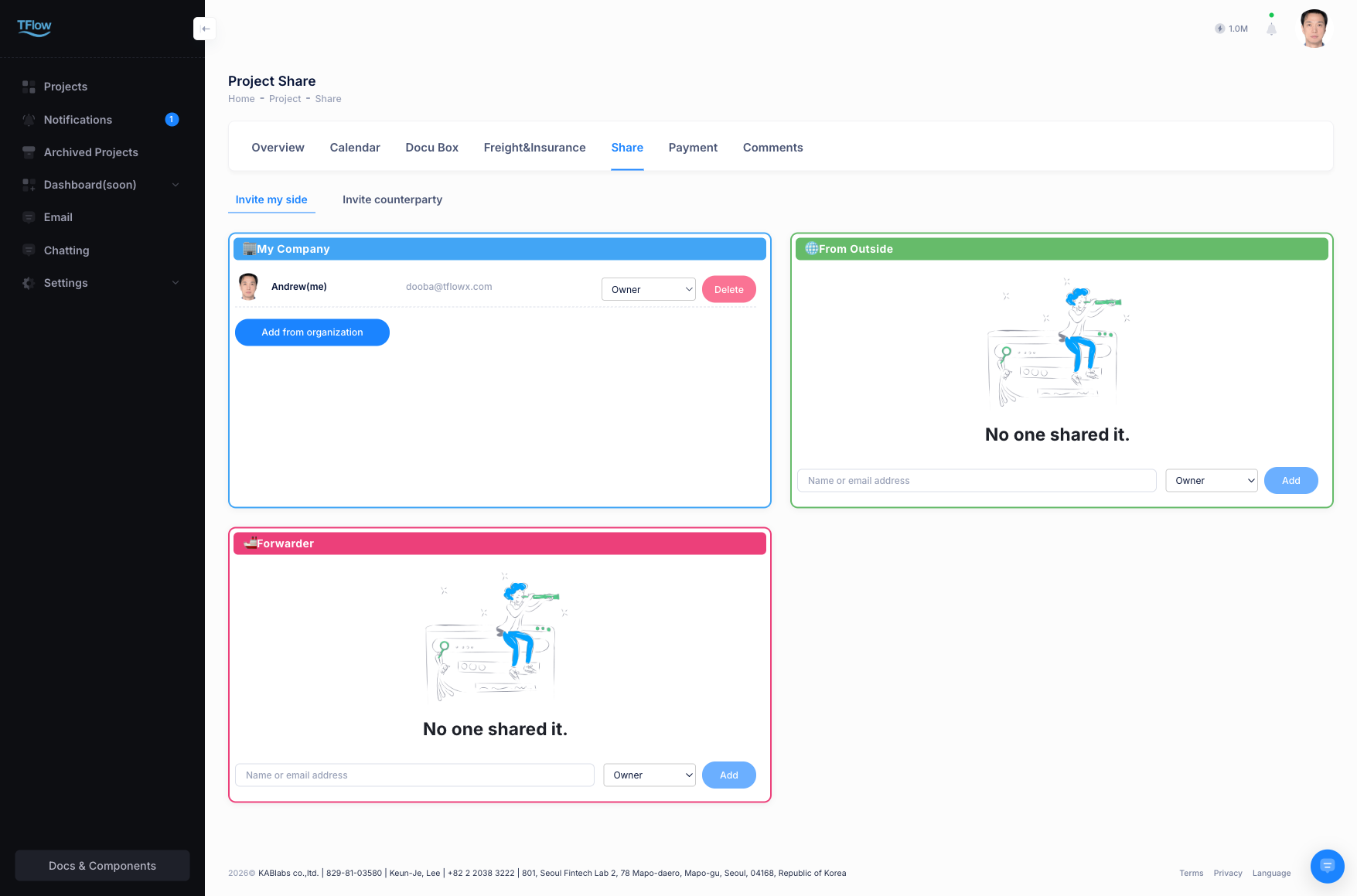
Useful when you want to inform a partner company or customer of only specific project progress. There are two ways to share — secure link sharing, issued with an expiry and a permission scope, and non-member sharing, which grants read access to someone without a TFlow account. Both are read-only, and the links you issue are managed and revoked from the Parties tab.
Secure Link Sharing
- Create access-restricted link: Create a 'Secure Share Link' and deliver it by email or message.
- Restrict permission scope: The shared information is view-and-confirm only (Viewer), and payment actions and sensitive files are hidden.
- Link expiration period: You can set it to be automatically invalidated after a set number of days or a deadline.
Non-member Sharing
You can also share a project with an external partner who has not signed up for TFlow.
- Invite by email: Enter the other party's email address in the Parties tab to send a sharing invitation.
- No separate sign-up needed: The invited non-member can view read-only project information via the secure link without creating a TFlow account.
- Permission restriction: Information shared with a non-member is view-only; they cannot perform actions such as document uploads or status changes.
2-1. Share Link Troubleshooting (FAQ)
- Q: "I want to destroy/revoke a link I created."
- A: In the management screen of the
Partiestab, press the force-delete (Revoke) button for that active link, and external access is immediately blocked at the source.
- A: In the management screen of the
- Q: "The sharing screen won't open and says I don't have access."
- A: If it happens to you — you are not registered as a party on this project, so the sharing screen stays closed. Ask the project owner or your side's approver to add you under Parties.
- If it happens to your customer — the link you issued has passed its expiry date or has already been revoked. Issue a new link from the
Partiestab and send it again.
3. Member Roles and the Project Owner (Parties)
The Parties tab holds two different things: roles that split the work (approver, editor, viewer), and the owner, who manages the project itself.
Work roles — one approver, editors, viewers
| Role | What they can do | How many |
|---|---|---|
| Approver | Everything an editor can do, plus final decisions such as approving documents and accepting quotations | One per side (exporter and importer) |
| Editor | Create and edit documents, tasks, schedules and common data; manage members on their own side | Any number |
| Viewer | View only | Any number |
- When you create a project, you become the approver on your side. The first person you invite from the other side becomes their approver.
- Outside invitees and forwarders cannot be the approver.
Who goes in which section
| Section | Who can be added | How to find them |
|---|---|---|
| My company | Registered members of your organization only | Typing an email or name searches your organization chart. You can also pick people with Add from organization |
| Outside collaborators | Anyone | Searches your friends list. For anyone else, type the email address and an invitation is sent |
| Counterparty | One representative of the other side | From your friends list or by email. After the representative joins, the other side adds its own people in its "My company" section |
- Invite colleagues who are not in your organization yet from My organization first. Add people from other companies as outside collaborators.
- When you invite by email, you are not told whether that address already has an account. A registered person is connected when they sign in; anyone else is connected after signing up.
- People already in the project stay as they are. These rules apply only when you add someone or move them to another section.
Handing over the approver role
Each side has one approver, so you change it by handing it over.
- Change the role of the person taking over to Approver.
- Confirm the message "OOO will become the approver, and the current approver △△△ will become an editor."
- The new approver gets a notification.
- Only the current approver can hand it over — and, on your own side, the project owner. Editors cannot change or remove the approver.
- The other side decides its own approver.
- The new approver must be a registered member. People invited by email can take over after they sign up.
Project owner
The owner is not a work role; it is the right to manage the project. You can see who it is on the "Project owner" line at the top of Parties, and in the My role column of the project list (shown as "Approver · Owner", for example).
- Only the owner can rename, archive, restore and delete the project, manage members in every section, and transfer ownership.
- The owner also has a work role of their own. Handing over the approver role and becoming an editor does not change ownership.
- The owner cannot be removed from Parties.
Transferring ownership
- Open ⋯ menu → Transfer ownership in the project list, or click Transfer ownership on the owner line at the top of Parties.
- Choose who will take over and click Transfer. They get a notification.
- You can transfer only to a member of your company who is already in your side's "My company" section of this project. If they are not listed, add them under "Invite my side" in Parties first.
- Both people keep their work roles (approver, editor, ...).
- Archived projects can be transferred. Sample projects cannot.
Troubleshooting (FAQ)
- "Only the current approver can hand over the approver role."
- Ask the current approver to hand it over. On your own side, the project owner can change it too. The other side decides its own approver.
- "The approver cannot be changed or removed directly."
- The current approver must hand the role over to someone else. If the approver has left and cannot do it, ask the project owner.
- "The approver role can only be handed to a registered member."
- People invited by email can become the approver after they sign up. Until then, invite them as an editor or viewer.
- "The project owner cannot be removed from the members."
- Transfer ownership to someone else first, then remove them.
- "Ownership can only go to a member of your company who is on your side of this project."
- Check that the person belongs to your company and is in the "My company" section of this project.
- "Only members of this side's company can be added here."
- The person belongs to another company. Add them as an outside collaborator.
- "Only registered members of your organization can be added here."
- The person is not in your organization (or you entered only an email). Invite them from My organization first, or add them as an outside collaborator.
- "The other side already has a representative."
- The other side adds its own people. Ask their representative.
- "Your current role does not allow this action."
- Viewers can only view. To edit tasks or documents, ask the project owner or your side's approver for the editor role.