2.1. Email Integration and Settings (Email Settings)
Connect your work mail (Gmail, or a company IMAP/POP3 account) to TFlow so you can read and reply to trade-related mail without leaving TFlow.
⚠️ Anyone can connect their own work account. To connect a shared company address (e.g., sales@company.com) for the whole company to use, ask your company Master.
1. How to Connect a Google (Gmail) Account
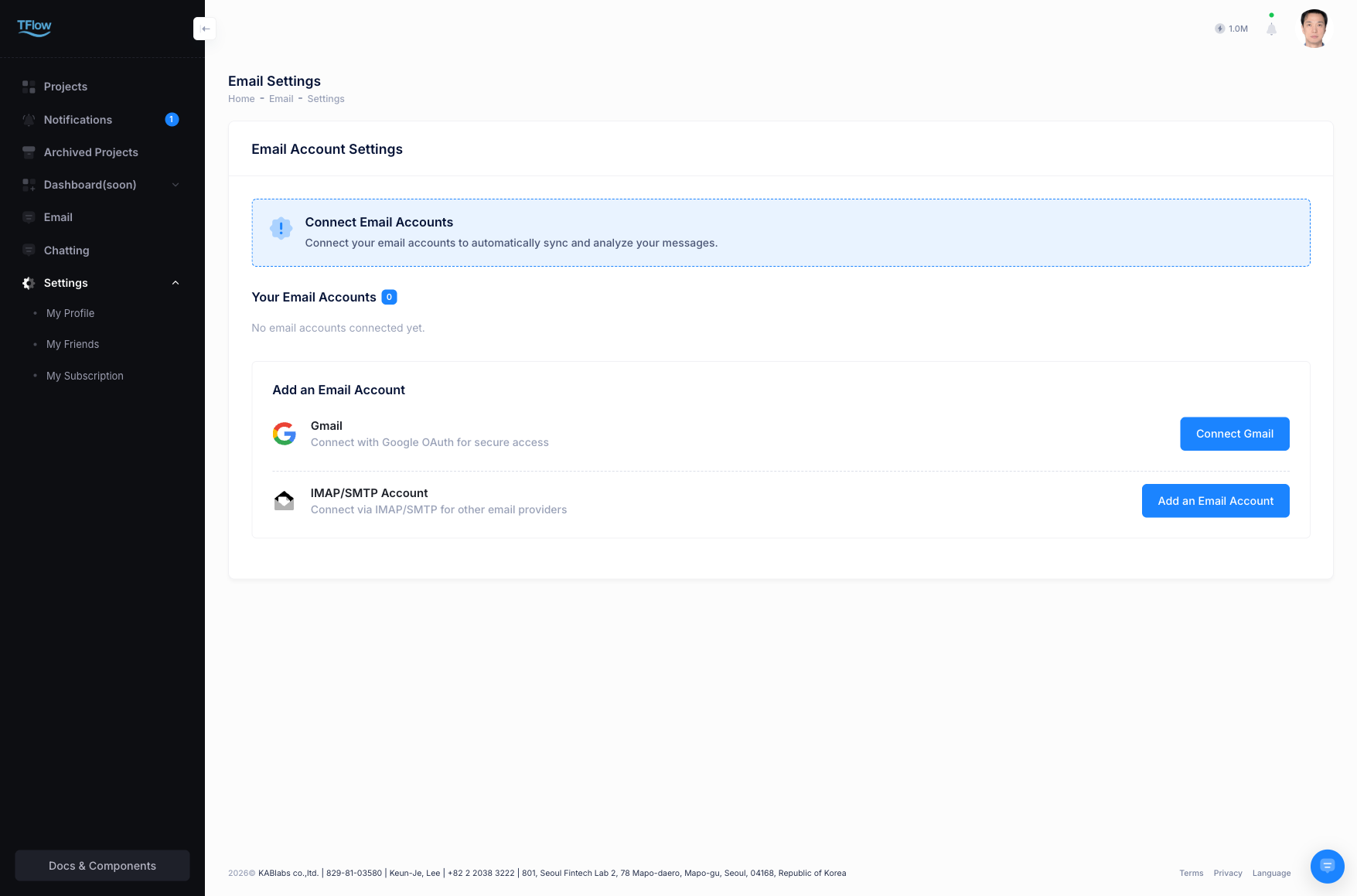
If you see "No active email account found" or "No email accounts connected yet.", no mailbox is connected yet. Connect one as follows.
- In the left-hand menu, go to Email → Settings (screen title: Email Account Settings).
- Click Connect Gmail.
- When the Google login window appears, choose the work Google account you want to connect.
- Approve the access permissions so TFlow can read your mail.
- When the connection finishes, the account appears in the list as Active and mail starts arriving.
1-1. Google Integration Troubleshooting (FAQ)
- Q: "Re-authentication Required" — mail has stopped arriving.
- A: Go to Email → Settings, click Re-authenticate on that account, and approve the Google sign-in and permissions again. This appears when you change your Google password or revoke TFlow's access in your Google account. If the account shows as Inactive, click the status icon to activate it again.
- Q: "I get an Access Denied or app-blocked error."
- A: First check whether your browser is blocking popups. If your company uses Google Workspace, your company's Google Workspace administrator may not have allowed external apps (TFlow) to connect. Ask whoever manages your company's Google accounts to allow it.
2. How to Connect External Email (IMAP / POP3)
If you use a company mail server or another mail service, connect it by entering the IMAP settings yourself. Use this route as well when you see "Unsupported email provider".
- On the Email → Settings screen, click Add IMAP Email Account.
- Enter the following information accurately.
- Email Address: your full address (e.g., user@yourdomain.com)
- Password: we recommend an app password created in your mail service.
- IMAP Server Settings: IMAP host, port (e.g.,
993, secure SSL/TLS) - SMTP Server Settings (optional): SMTP host, port (e.g.,
465SSL /587TLS)
- Save — the connection is verified and the account is added to your list.
2-1. IMAP / POP3 Integration Troubleshooting (FAQ)
- Q: "The connection failed / authentication failed."
- A: Either the password is wrong, or your mail service (Naver, Daum, etc.) blocks "external access by less secure apps" by default. In your mail site's settings, turn IMAP on, create an app password, and enter that instead of your regular password.
- Q: "The latest mail appears too late and doesn't stay in sync."
- A: Mail is fetched account by account, so it can lag briefly when you have many accounts or a large mailbox. If it's urgent, click the Sync icon at the top right of the inbox to fetch mail right away.