1.1. Project List Guide
On the Project List page, you can view and manage all the trade projects you are participating in or have created.
✨ UPDATED (2026-07) — The project list is now unified into an Active Projects / Archived Projects tab layout. The separate "Archived Projects" sidebar menu is gone; switch with the tabs at the top of the same screen. Existing URLs and bookmarks still work (
/projectsopens the Active tab,/archivedopens the Archived tab).
💬 Try it with Lyra
- "Show me last month's project status"
- "Go to the screen for creating a new project"
- "How many projects are in progress?"
Detailed feature guide: Lyra Interactive Features Guide
1. Key Features
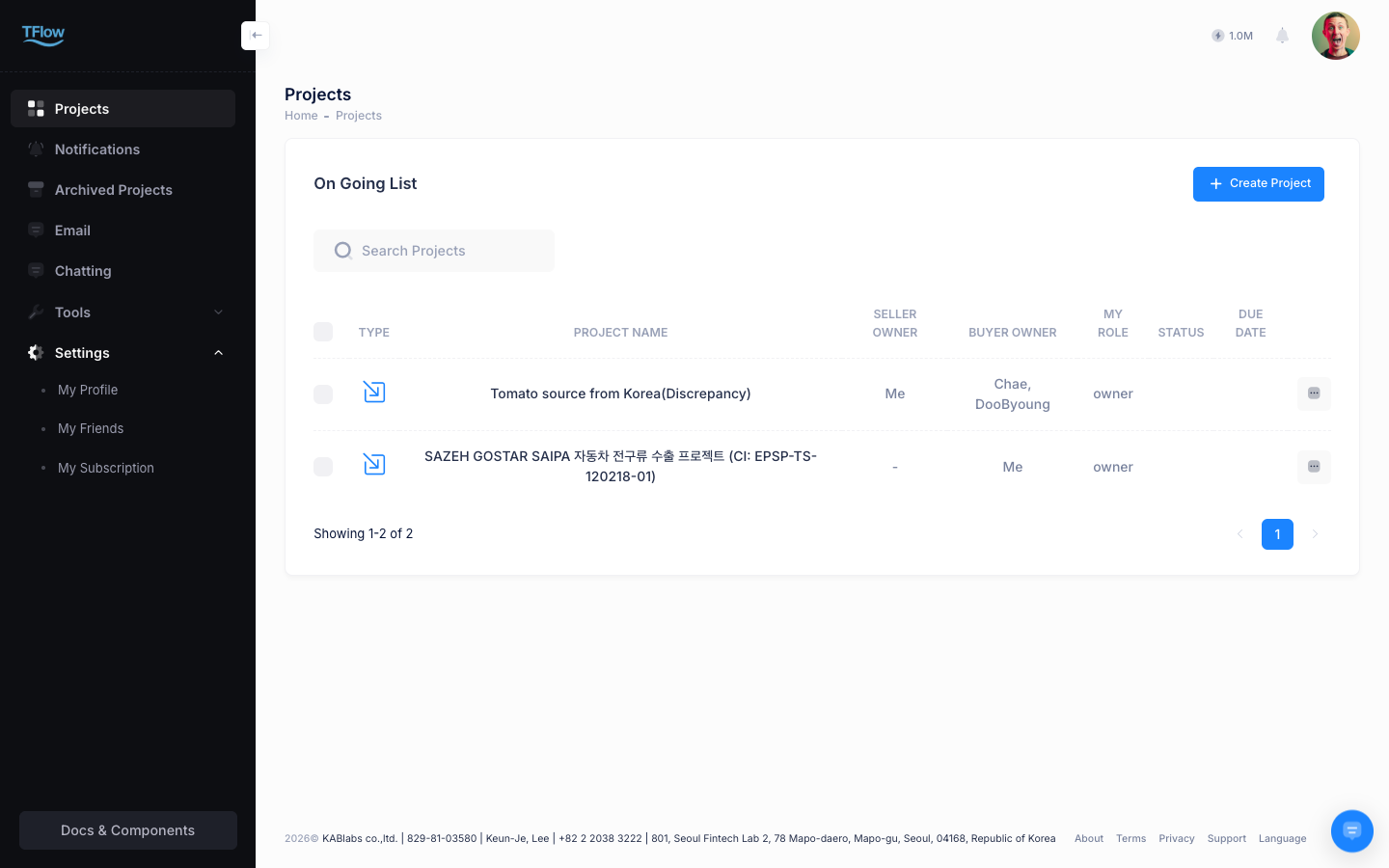
- Active / Archived tabs: Switch between Active Projects and Archived Projects with the tabs at the top of the screen. Each tab shows its project count, and the Archived tab shows the archived date.
- Search & Filter: Using the search bar at the top of the screen, you can quickly find projects by project name (
Project Name), shipment number (CI/B/L Number), or partner company name. Filtering by status (in progress, completed, canceled, etc.) is also provided. - Create New Project: Click the
New Projectbutton at the top right to start a new import/export project. - Card View and List View: Using the view toggle button at the top right of the screen, you can choose whether to view projects as visual cards or as a detailed data table. The counterparty columns are labeled Exporter / Importer.
2. Create Project
Clicking the New Project button at the top right opens a one-step simplified modal. You can enter all items on one screen and create the project immediately.
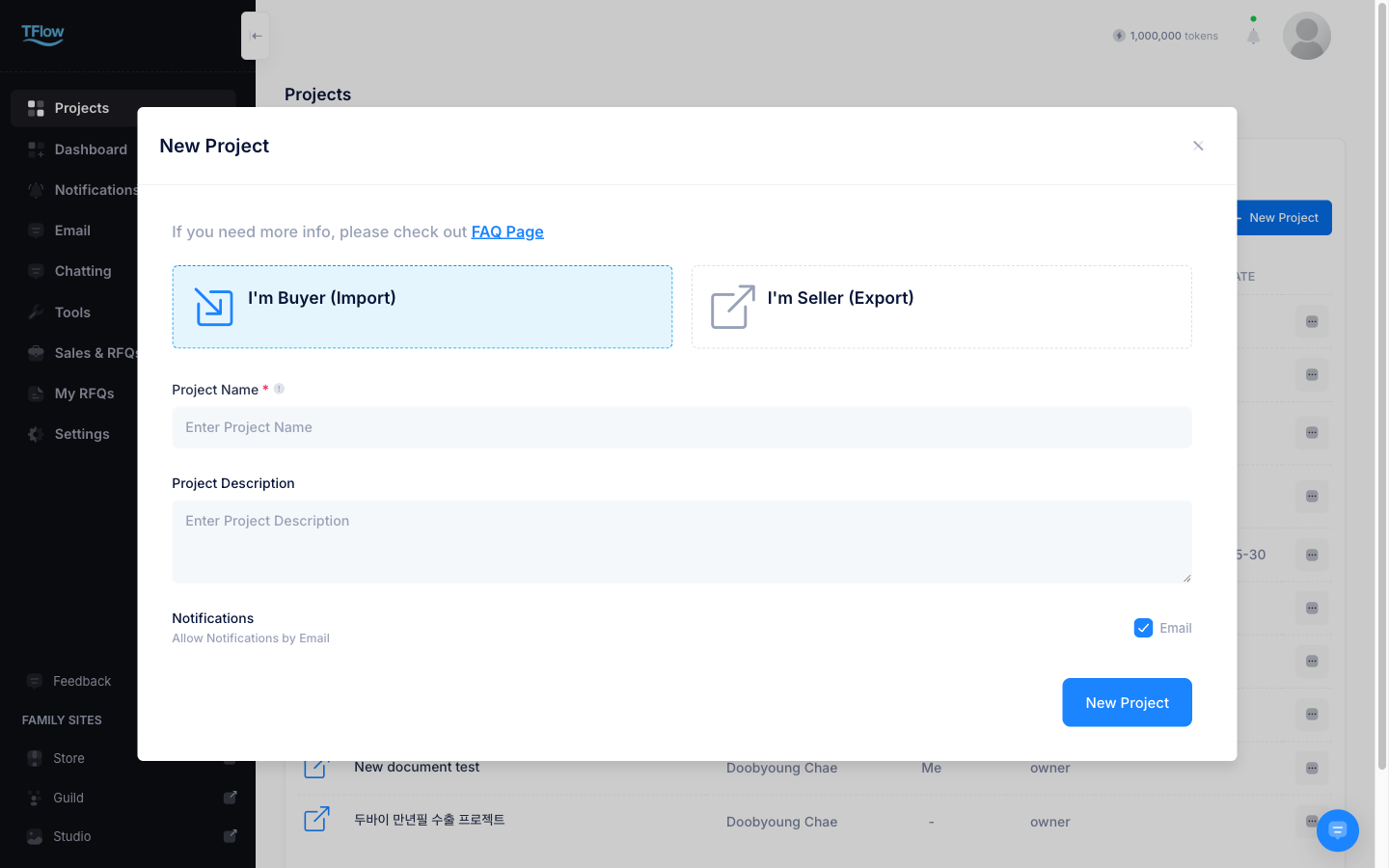
Input Items
- Project Type: Select one of
I'm Buyer (Import)orI'm Seller (Export)using radio buttons. - Project Name: A uniquely identifiable name (e.g., "2026 POSCO Q1 Steel Export") — required, at least 3 characters
- Description: A brief description note about the project (optional)
- Notifications: Choose whether to receive email notifications.
Team member invitations and counterparty settings are done in the Parties menu on the project detail page after creating the project. Schedules such as quotation date and PO date can also be set in the project detail.
Help Center
Clicking the FAQ Page link at the top of the modal opens the full-screen Help Center. You can check the 4 frequently asked questions (FAQ) about project creation and operation.
💡 Troubleshooting (FAQ)
- Q: "I don't see the project I'm working on in the list." / It says "Project not found."
- A: Check these in order.
- Look at the Archived Projects tab at the top of the screen. Archived projects never appear on the Active tab.
- Check that the status filter is not narrowed to "In Progress" only, and switch it to "All."
- If it is still missing, you have been removed from the project's members or your access was revoked. Ask the person who created the project to add you back.
- A: Check these in order.
- Q: It says "This project is archived. Modifications are not allowed."
- A: Archived projects are read-only. To work on one again, open it from the Archived Projects tab at the top of the project list and click Restore. Confirm with Yes, restore it! and it returns to the Active tab.
- Note: with the 2026-07 update, archived projects are no longer a separate sidebar menu — they are a tab on the project list screen. The existing URL
/archivedstill opens the Archived tab.
- Q: "Can I permanently delete a project?"
- A: Trade transactions have to stay on the record, so permanent deletion is not supported. Set the status to "Canceled" or archive it, and manage it from the Archived Projects tab instead.
- If you see "Cannot delete a project with counterparty," a counterparty is already linked to that project. Archive it instead.
- If you see "Only the project owner can perform this action," ask the project owner (shown at the top of Parties). See Transferring ownership.